
 YouTube Creators
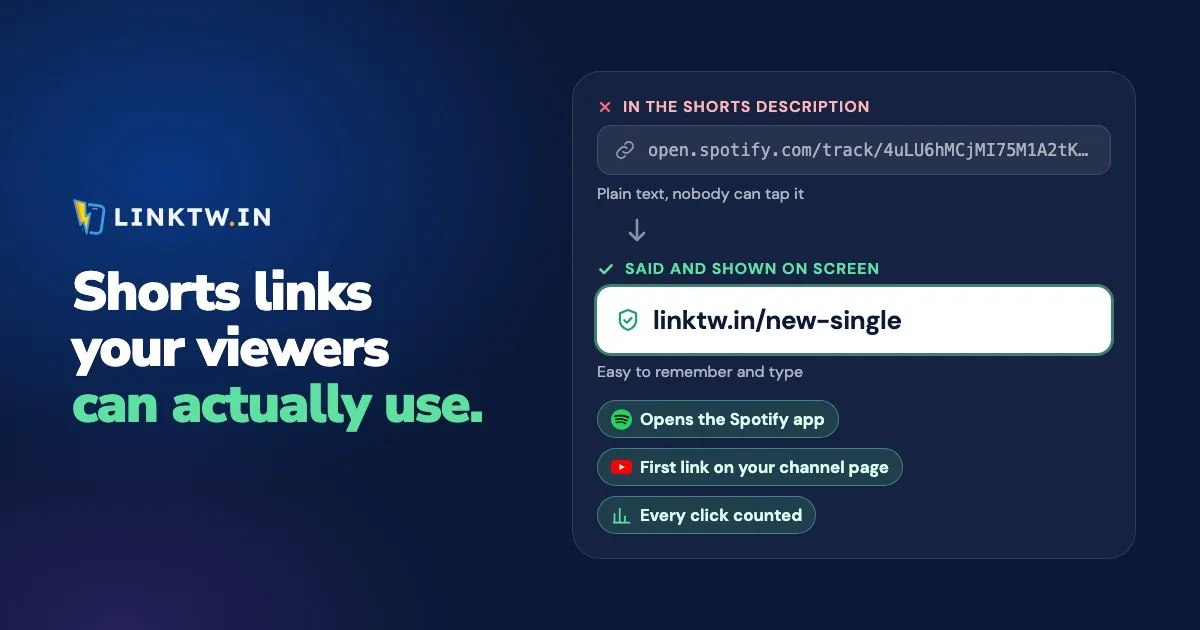
No. A URL in a YouTube Shorts description can't be tapped, and neither can a URL in a Shorts comment, pinned or not. YouTube made both plain text on every channel from August 31, 2023, to cut down on spam (YouTube's page on clickable links).
The rule is only for Shorts. On a regular video, a link in the description or the comments is clickable once your channel has advanced features, which is what YouTube description links covers.
On the Short itself, the link YouTube gives you is the related video under your handle, and it can only point at your own videos, Shorts or live streams. A shop, a song or a newsletter goes in your channel links. A LinkTwin link gives a Short an address short enough to say on camera, and typed into a phone's browser or tapped in Instagram, it opens the right app.
What you can tap on a YouTube Short
| Spot | Can they tap it? | Where it goes |
|---|---|---|
| A URL in the Shorts description | No, it's plain text | Nowhere |
| A URL in a comment, pinned or not | No, it's plain text | Nowhere |
| Hashtags and @mentions | Yes | Other pages on YouTube |
| Related video link | Yes | A video, Short or live stream on your channel |
| Brand link on a sponsored Short | Yes | Your brand partner's site |
| Shopping product tag | Yes | The product you tagged |
| Links on your channel page | Yes, on the channel page | Any site that follows YouTube's external links policy |
As far as YouTube's help for end screens and info cards shows, both are for regular videos, not Shorts.
So the Short can't hold a button for your shop, your song or your newsletter. What it can hold is an address short enough to say and show on screen, so people can type it or find it on your channel page.
How to add a related video link
This is the link YouTube built into the Shorts player. It shows under your channel handle, and viewers can tap it. It can point to any public or unlisted video, Short or live stream on your channel, but not to a website or to another creator (YouTube Help).
You add it after the upload, in YouTube Studio:
- Open YouTube Studio and click Content.
- Click the Short you want to edit.
- Pick a Related Video from your channel and click Save.
If Related Video is missing, your channel doesn't have advanced features yet. Check under Settings, Channel, Feature eligibility, where verifying your identity is the quicker route (how feature access works).
When the Short is a clip of a longer video, set this link every time, because that viewer already stopped for you. If the same clip also runs as a Reel, Instagram has no related video, so the full video goes behind the link in your bio.
Where an outside link has to live
A shop, a song, a newsletter or a sponsor's page is a channel-page link, not a Shorts description link: of all the places YouTube lets you put a link, it's where a Shorts viewer can reach an outside link of your choosing. You can add up to 14. The first one shows next to the Subscribe button, and the rest appear when a viewer taps to see more (YouTube Help). To add one, open YouTube Studio, go to Customization, then Profile, add a title and URL under Links, and click Publish.
That first slot is the Shorts version of a link in bio, so give it to whatever your recent Shorts talk about. When they point at more than one place, a LinkTwin bio page in that slot can hold them all. And in the Short, say the link is on your channel page: tell people it's in the description and they'll hunt for a button YouTube won't show.
Links to your own website or shop are included on every paid plan.
Sponsored Shorts and Shopping tags
On a sponsored Short you can add one link to the brand's site, once the brand has reported the Short as part of a brand deal campaign and appears in your partner list. Viewers see it on screen and in the description, though not on paid impressions (YouTube Help). You add this one in the YouTube app or the Studio app while you upload or edit the Short.
YouTube Shopping lets you tag products in Shorts once your channel meets YouTube's Shopping requirements, which for most channels include the Partner Program. If a tag or any other link earns you money, disclose it where viewers will see it.
The link to the Short itself
"YouTube Shorts link" also means the address of the Short: youtube.com/shorts/ plus the video ID. In the YouTube app, tap Share, then Copy link.
Paste that address into LinkTwin before you post it on Instagram or Threads. A LinkTwin link opens your Short in the YouTube app's Shorts player, already signed in, so the viewer can like, comment or subscribe without logging in again, where a plain youtube.com link would stay in Instagram's browser. LinkTwin's YouTube links work the same way for regular videos, channels and playlists.
On TikTok, where links stay inside TikTok, turn on "Optimize Links For TikTok" in Link Settings before you post the link.
Set the address you'll say
- Paste the page your Short is about into the Create App Link box. LinkTwin returns a short link on linktw.in.
- Put that link first on your channel page. Show the same characters on screen and say them, and you can type them in the description too, as text people can copy.
- To share the Short itself, paste its
youtube.com/shorts/address the same way and post the short link you get. - Open the click report for each link: clicks over time, country, device and source. It counts clicks, not views, subscribers or sales. Make a separate link for each Short if you want to compare them.
An ending you can say on camera, such as linktw.in/new-single, is available from the Medium plan.
Changing where a link points after you share it is included on every paid plan.
It's free to start: the free plan includes 10 links and 500 clicks a month.