
 Branded Links & QR Codes
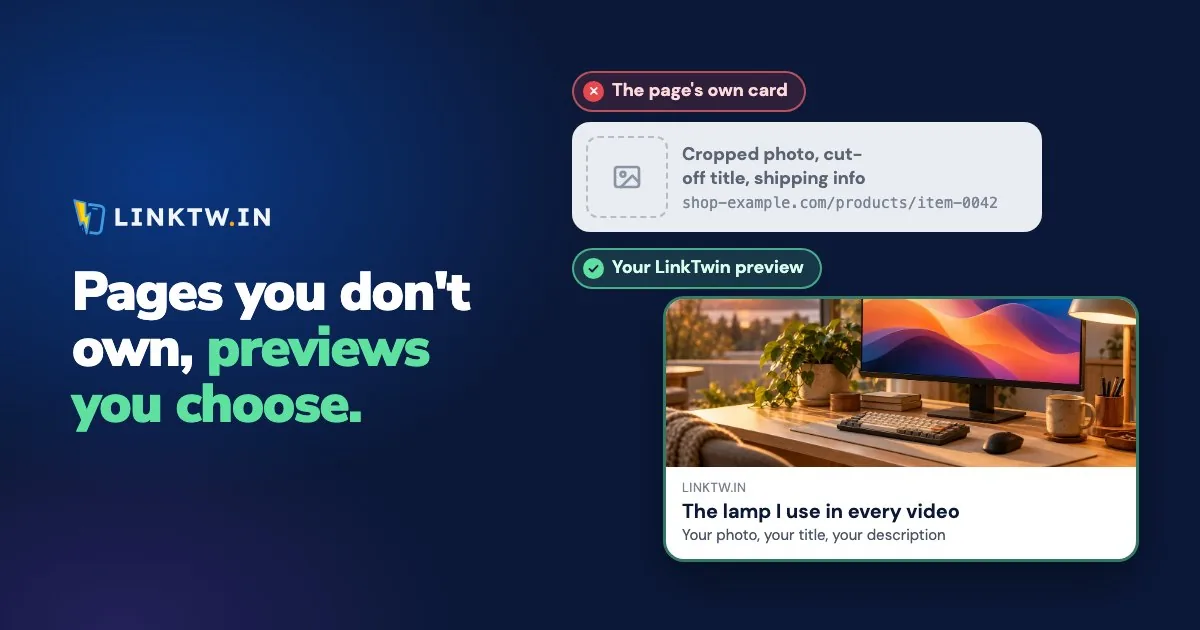
A link preview is the card (title, description and image) that Facebook, LinkedIn, X and chat apps build from a page's og: tags the first time a URL is shared, and they keep showing that saved card. To change it, you either change what the app reads and ask it to read again, or you share a link that brings its own card.
The second route is the one that works on pages you don't own. You can't edit the tags on an Amazon product, a YouTube video or a sponsor's landing page, and Facebook stopped letting people rewrite a link's headline and image while posting back in 2017. A LinkTwin link carries its own title, description and image, so apps draw the card you chose while the tap still lands on the same page. You set the card on the short link and see how iMessage, WhatsApp, LinkedIn and Facebook will draw it before you share.
Refresh a link preview the app already saved
When you've fixed the tags on your own page, the apps still hold the old card until they fetch the page again. Each app has its own way to make it look again, and none of them rewrites a post or a message that already went out.
| Where you shared it | What gets you a new card |
|---|---|
| Paste the URL into the Sharing Debugger and choose Scrape Again. If you replaced the photo, give the new one a new file name first, because Facebook stores images by their address. | |
| Run the URL through Post Inspector. Posts already up keep the old card, and the next post gets the new one. | |
| X | No refresh tool we know of, as of November 2026. Share an address X hasn't seen before. |
| WhatsApp, iMessage, Slack, Discord | Messages already sent keep their card. Send the link again. |
?v=2 to the address can still bring back the old card, because a page can tell the app which address is the real one. A new short link has no stored card anywhere, so the first fetch is clean.Link preview image size
Use 1200 x 630 pixels. That's the 1.91:1 shape LinkedIn asks for (its minimum is 1200 x 627). Each app crops a little differently, so keep faces and words away from the edges. A much smaller picture gets shown as a thumbnail or dropped. JPG, PNG and WebP all work as an upload on a LinkTwin link.
Link preview or og:image not showing
A blank card means the app never got tags it could use, which is a different problem from an old card. Check these, most common first:
- The page has no Open Graph tags. Apps fall back to whatever they can guess, often a bare title or just the address.
- The tags are written by JavaScript. The bots that build cards don't run scripts. If a plugin adds the tags after the page loads, they never see them.
- The image isn't public. Open the image's full address in a private browser window. A login wall or a broken file means the apps can't load it either.
- A firewall or security plugin blocks the crawler. If Facebook's or LinkedIn's bot can't fetch the page, the card comes back empty.
- The image is too small. Use the size above.
On a site you don't control, you can't fix any of these. A LinkTwin link with its own preview is what the app reads instead, so a missing tag or a blocked bot on the destination no longer decides your card.
Set your own title and image on a LinkTwin link
This covers most of what creators share: a product, a video, a podcast episode, a sponsor's page. Posting the raw URL means living with their card, cropped pack shot and cut-off title included. With Social Media Preview on, your short link serves its own tags (including the one X needs for its card), and nothing changes on the destination.
- Paste the destination into the Create App Link box in your dashboard and create the link.
- Choose Customize link, or Edit on a link you already have, and switch on Social Media Preview.
- Write a Title and a Description. The counters show the recommended length: 60 characters for the title, 160 for the description.
- Under Preview Image, keep the page's own image, choose Upload to add yours, or choose No image. Save, and the card is live.
- Send the link to yourself in a chat before you post it everywhere.
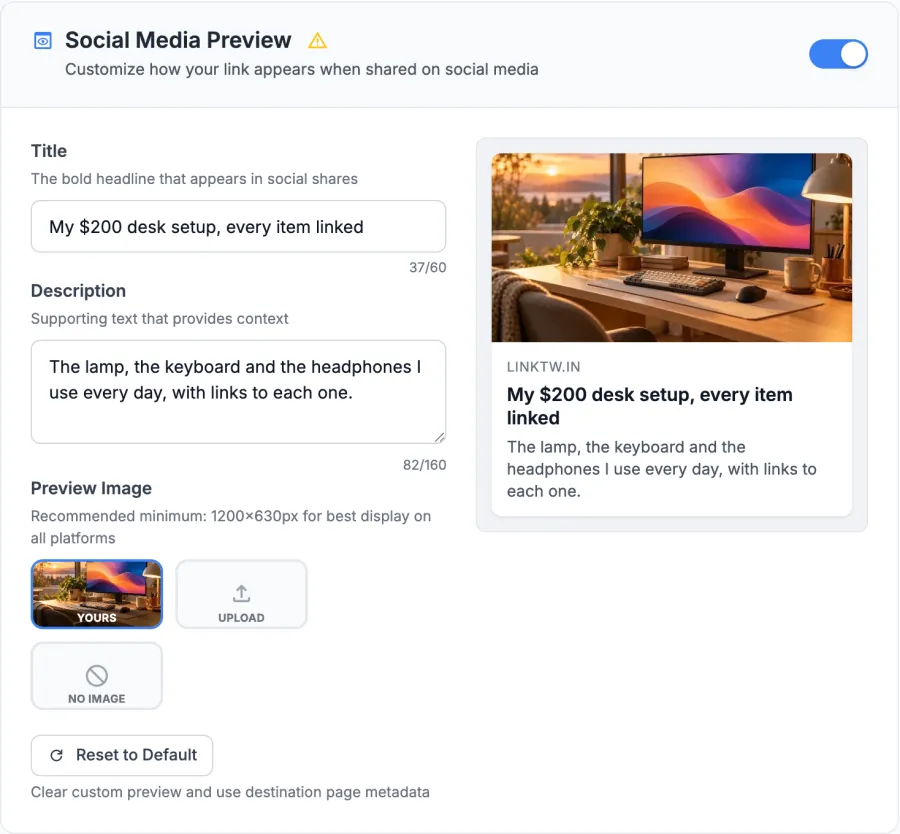
People who tap still land on the same page, and a YouTube, Amazon or Spotify link still opens that app when it's installed, which a plain link shared on Facebook doesn't do, since Facebook opens links in its own browser. Your photo is what Facebook, LinkedIn, X and chats draw before the tap; YouTube and the shop keep showing their own image after it. Write a card that matches the page behind it, because a card that promises something the page doesn't have reads as bait.
The domain printed on the card is the short link's, not the shop's. To show your own name there, a branded domain such as go.yourname.com takes the place of linktw.in, and connecting a custom domain takes a single DNS record. Custom domains are available from the Medium plan.
Change the preview on your own site
If the URL is your own blog, shop or landing page, the tags live on that page: site builders and SEO plugins have fields for a social title, description and image. Put a replacement picture at a new file name, then run the refresh above for each app. If the link you actually post is a LinkTwin link to your site, it's quicker to set the card on that link than to wait for every app to read your page again. Links to your own website or shop are included on every paid plan.
Common questions
Can I try two thumbnails for the same page?
Yes. Create two LinkTwin links to the same page, give each its own card, and share them with similar audiences. A/B testing a link explains how many clicks you need before you trust a winner. The click report shows taps by country, device and source, not who tapped or what they bought.