
 YouTube Creators
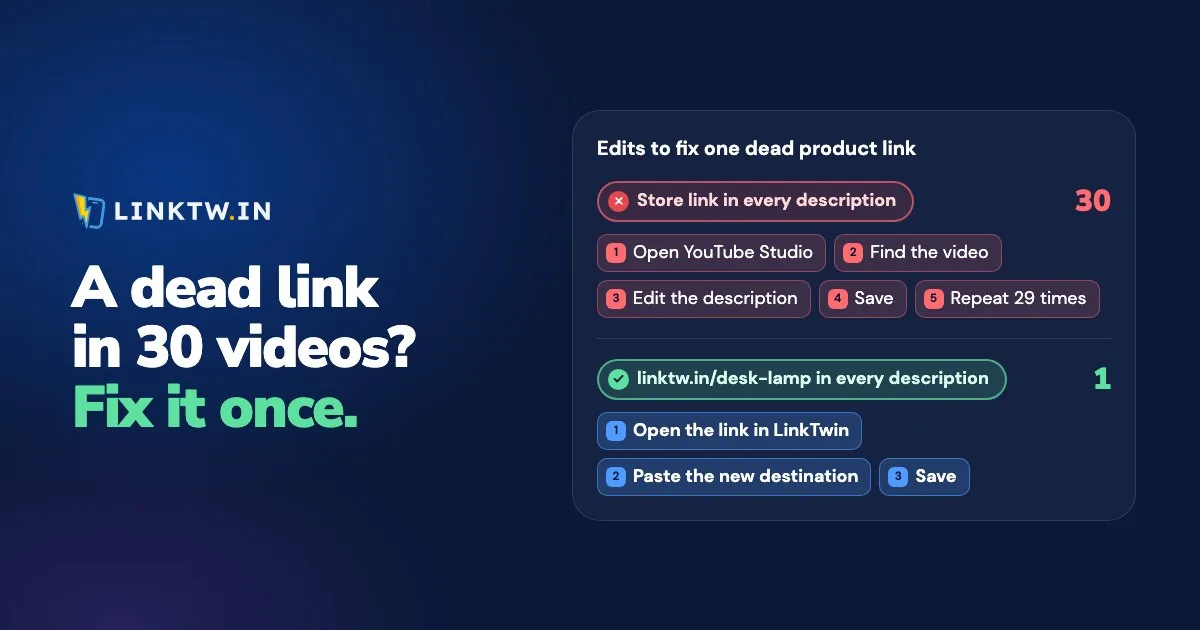
To update a link in all your old YouTube descriptions at once, you need a tool that finds that URL in every description and swaps it in one save. YouTube Studio doesn't list the links inside your descriptions, so finding every video that still holds an old URL is the slow part.
LinkTwin's YouTube Bulk Editor lists every link in your descriptions, flags the broken ones, and replaces a URL in every video that uses it in one save. The editor is in early access while YouTube reviews it: sign up free on its page and we'll email you as soon as it opens for your channel. The free check on that page works for everyone today, with no sign-in.
Picture a USB mic you named in forty descriptions. The listing now says unavailable, and your affiliate tag sits on a page that can't sell anything. In Studio, that means finding and editing each of those videos. Once the Bulk Editor opens for your channel, it's one link to replace. And once those lines hold a LinkTwin link instead of the store address, the next dead product is a single change in your dashboard, which works today.
Two fixes: today's text and the next dead link
The Bulk Editor rewrites the descriptions you already have. A LinkTwin link in those descriptions makes the next change happen outside YouTube. Most channels want both.
| YouTube Bulk Editor (early access) | A LinkTwin link in the description | |
|---|---|---|
| What it changes | The description text on YouTube | Where the short link points |
| What it fixes | Links already in your descriptions, broken or not, plus old codes and sponsor lines | The next product that disappears |
| One save covers | Every video you leave ticked | Every video, comment and QR code that uses the link |
Find the dead links first
A lot of dead links still load. The product was discontinued, a deal or a sponsor code ended, or the video you linked as "part one" was deleted or made private. Start with the videos people still watch: in YouTube Analytics, sort your content by views over the last 90 days. A dead link in a video people still open costs you every day, and one in a video nobody watches can wait.
The free check on the Bulk Editor page gives you a quick summary. Paste your channel link or @handle and it reads your latest 50 public videos, counts the links that could change, tests the ones you use most, and flags what's broken: deleted or private videos, pages that answer not found, and websites that no longer exist.
tag=yourname-20.Pinned comments and your channel links can hold the same old URL, and every spot YouTube lets you put a link is worth a look while you're at it. If a link came from a sponsor, read the contract before you change it.
Replace a link in every video with the Bulk Editor
Once the editor opens for your channel, the whole job takes four steps.
- Connect the channel. Sign in with Google and allow read-only access. The editor reads your descriptions and lists every link, with where it lands and which app it can open. Edit access is asked for only when you press Save.
- Pick the links. Give a broken link a new address and it changes in every video that has it. Or tick links to turn into LinkTwin links: your affiliate tag stays on the Amazon URL, and on a phone Amazon, Spotify or Instagram opens in its own app. Amazon affiliate links are the usual case.
- Add text rules if you need them. Find and replace an old code, delete a whole line like last year's sponsor, or add the same text at the top or bottom of every description. Text rules never touch links.
- Review, then save. You read the exact new description of each video before anything is saved, and you can untick any video. Titles, tags, thumbnails and privacy settings are never touched. Any save can be undone for 30 days, and videos you edited on YouTube since are left alone.
Once the editor opens for your channel, scanning it and reviewing every change are free, and saving to YouTube is included from the Small plan.
The first lines of a description are what viewers see before they tap more, so what to put first in a YouTube description is worth reading before you write the new text.
Make the next dead product one edit
With the raw Amazon URL in forty descriptions, a disappeared mic means forty descriptions to rewrite. With linktw.in/usb-mic in them, you open that one link in your dashboard, paste the replacement into Destination URL, and save. All forty videos, the oldest included, now go to the new mic, and the short link and its QR code stay exactly as they were.
Changing where a link points after you share it is included on every paid plan.
One link per product, reused everywhere, means one edit when the product dies. One link per product per video means a few more edits, and it shows which video sent the clicks. Tracking affiliate clicks per video is the setup for that second choice.
- Make one link per product. Paste the product address into the Create App Link box. A LinkTwin Amazon link goes straight to Amazon with your saved tag. Custom endings like linktw.in/usb-mic are available from the Medium plan.
- Note where it lives. List the videos that use it in the link's Internal Note. Visitors never see it.
- Put it in the descriptions, most-watched videos first, with the store's name on the line, like
USB mic I use (Amazon): linktw.in/usb-mic, and your disclosure beside it. Affiliate disclosure examples has wording that fits a description. - Watch which links still get tapped. The click report shows each link's clicks over time, by country, device and source. LinkTwin counts clicks, not sales.
- When a product dies, change the link's destination, save, and tap the link once to check where it lands.
Common questions
Does the Bulk Editor change pinned comments too?
No, it changes descriptions only. A pinned comment holds its own copy of the URL, so edit it from the video's comments. If the comment holds a LinkTwin link, changing that link's destination covers it as well.
Does it cover Shorts and unlisted videos?
Yes, all of them. YouTube limits how many edits an app can make each day, so a large channel is saved in batches. You can follow the progress, and the rest continues on its own.